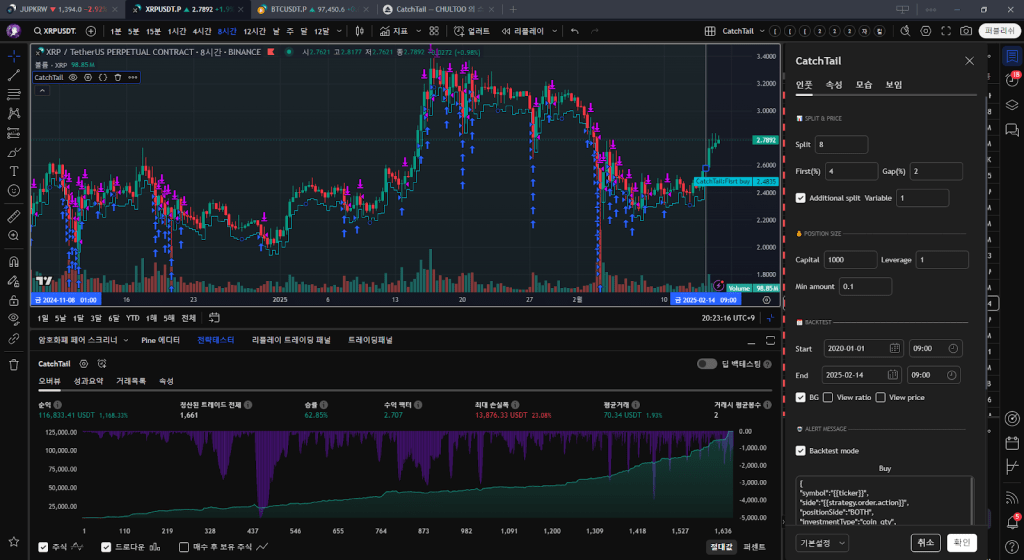
CatchTail is a short-term counter-trend strategy designed for crypto assets. It enables automated trading on Binance through signal trading via TradingView webhooks. You are invited to use this strategy for $99 per month. Only paid TradingView users with webhook access (Essential plan or higher) can utilize it.
1. Automated Trading Structure
TradingView Strategy -> Alert -> Webhook -> Binance Signal Trading You can use Binance’s built-in signal trading feature without needing a webhook bot.
2. Backtesting
Recommended assets: Binance Cryptocurrencies Futures (Choose assets with low slippage and high liquidity, such as BTC, ETH, SOL, XRP, DOGE, etc.)
Recommended time frames: 4H, 8H, 12H (Avoid excessively short time frames.)
1) Inputs
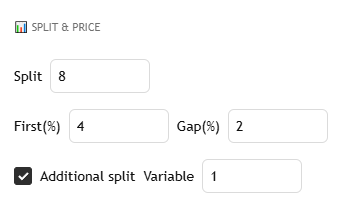
① SPLIT & PRICE
Split : Sets the total number of buy orders. The total capital is divided accordingly.
First : Defines the first buy trigger as a percentage drop from the opening price of the specified time frame.
Gap : Specifies how many percentage points the price must drop before triggering an additional buy.
Additional Split : Adjusts the number of buy orders based on the previous candle’s range. If the previous candle had a large drop, additional buy orders are triggered for greater stability.
Variable : Multiplier for additional splits. Controls the degree of extra buy orders based on volatility.
※ Final split count = Split + (1 – Low/Open) * 100 * Variable
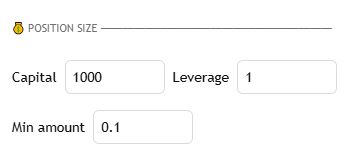
② POSITION SIZE
Capital : Initial capital per candle for backtesting purposes.
Leverage : Defines the leverage level.
Min Amount : The minimum trade unit of the exchange for a more
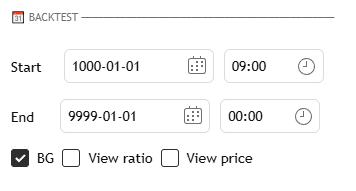
③ BACKTEST
Start / End: Defines the start and end dates of the backtest.
BG : Highlights the backtest period with a background color.
View ratio : Displays the buy ratio in a table.
View price : Shows the buy prices in signal comments.
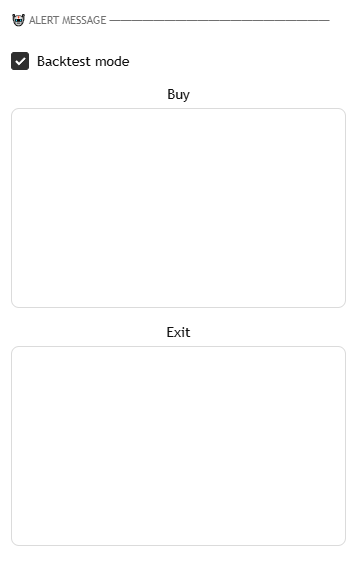
④ ALERT MESSAGE
Backtest Mode : Enabled for backtesting. Disabled when receiving live alerts to avoid capital misalignment between the strategy and actual exchange assets.
Buy : Alert message when a buy signal occurs.
Exit : Alert message when a sell signal occurs.
2) Strategy Tester
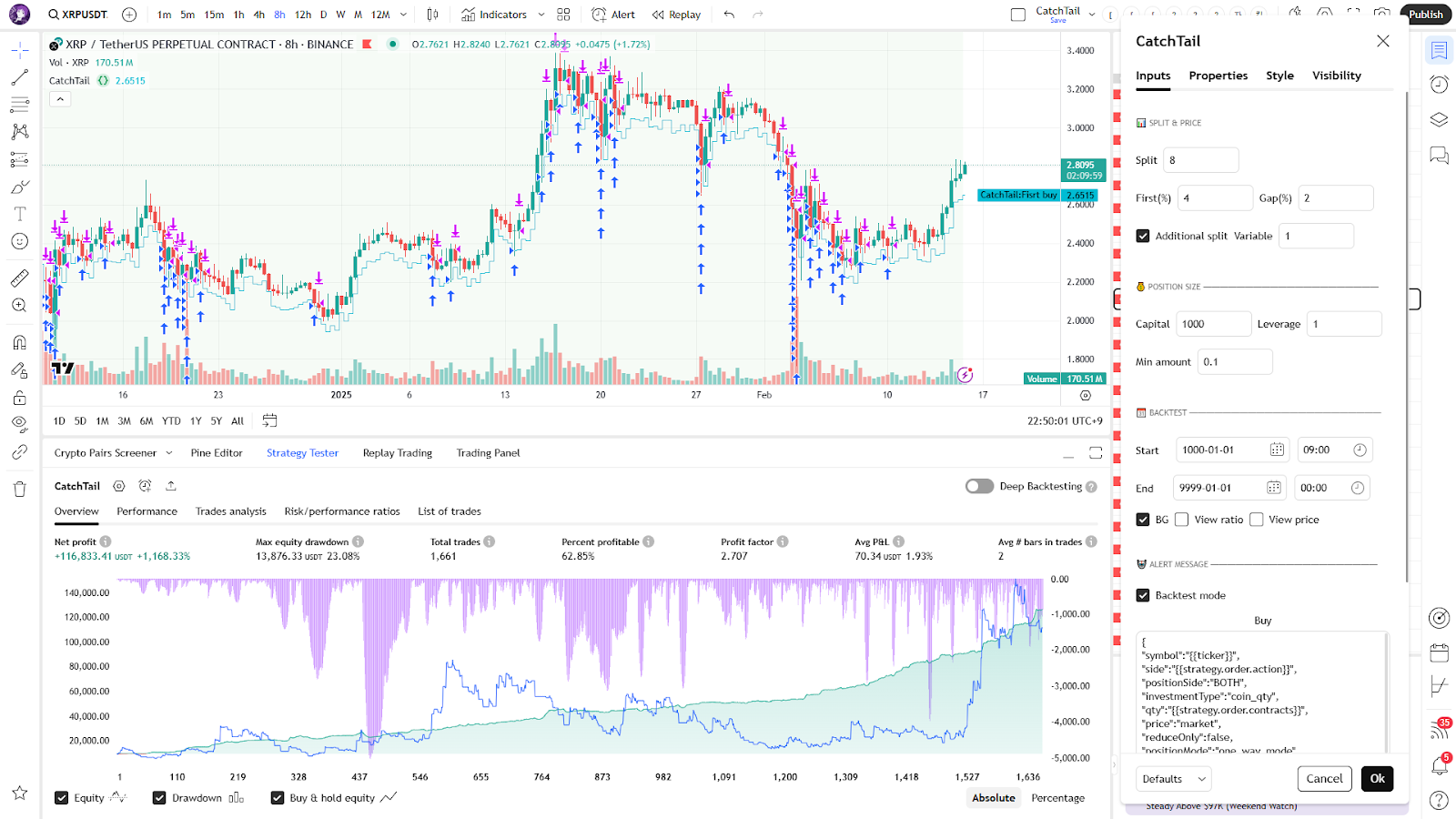
① Split 8, First 4, Gap 2
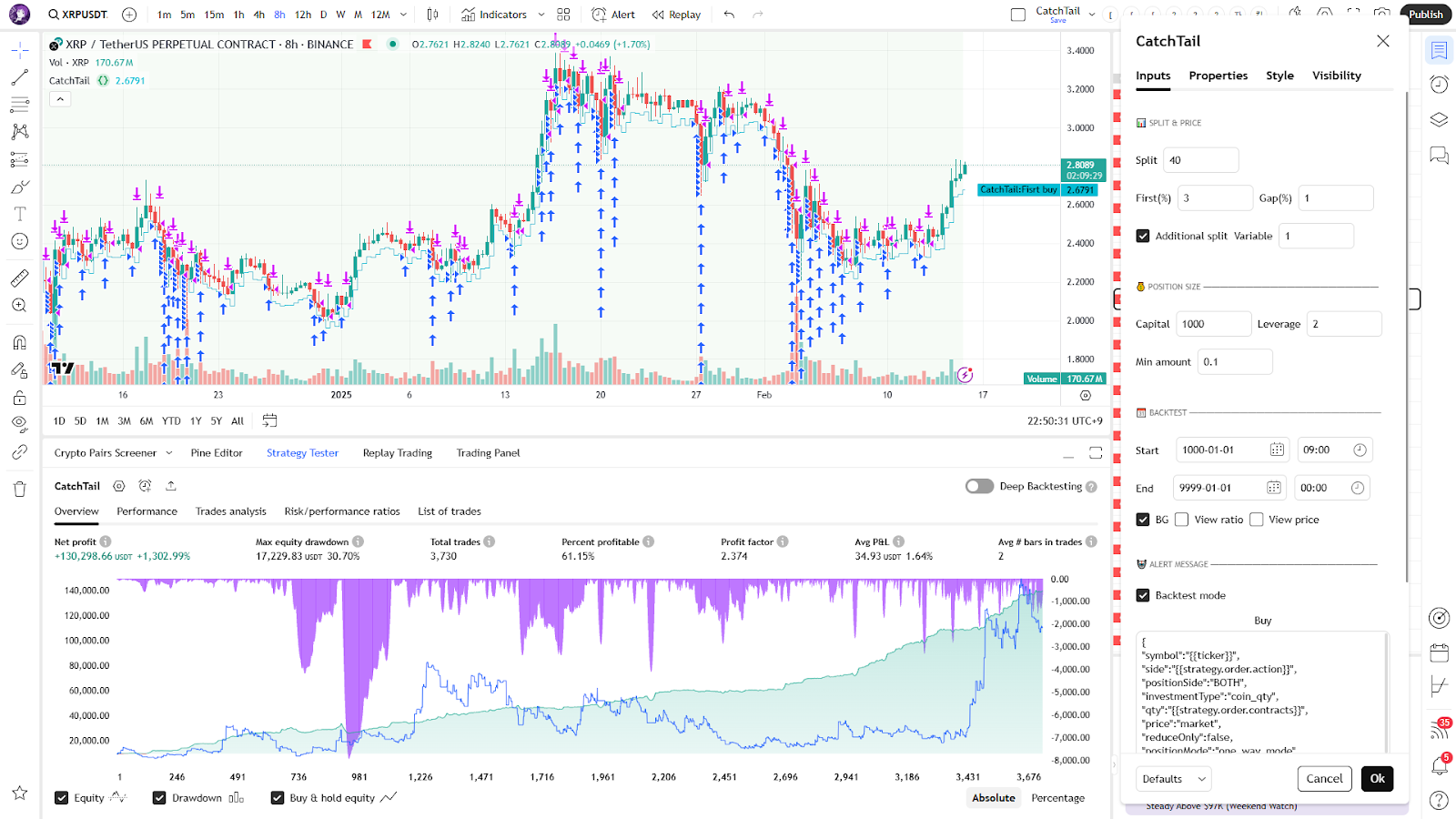
② Split 40, First 3, Gap 1, Leverage 2
The backtest results vary depending on the input values. Evaluate the inputs based on your own criteria, such as final profitability, MDD, and win rate.
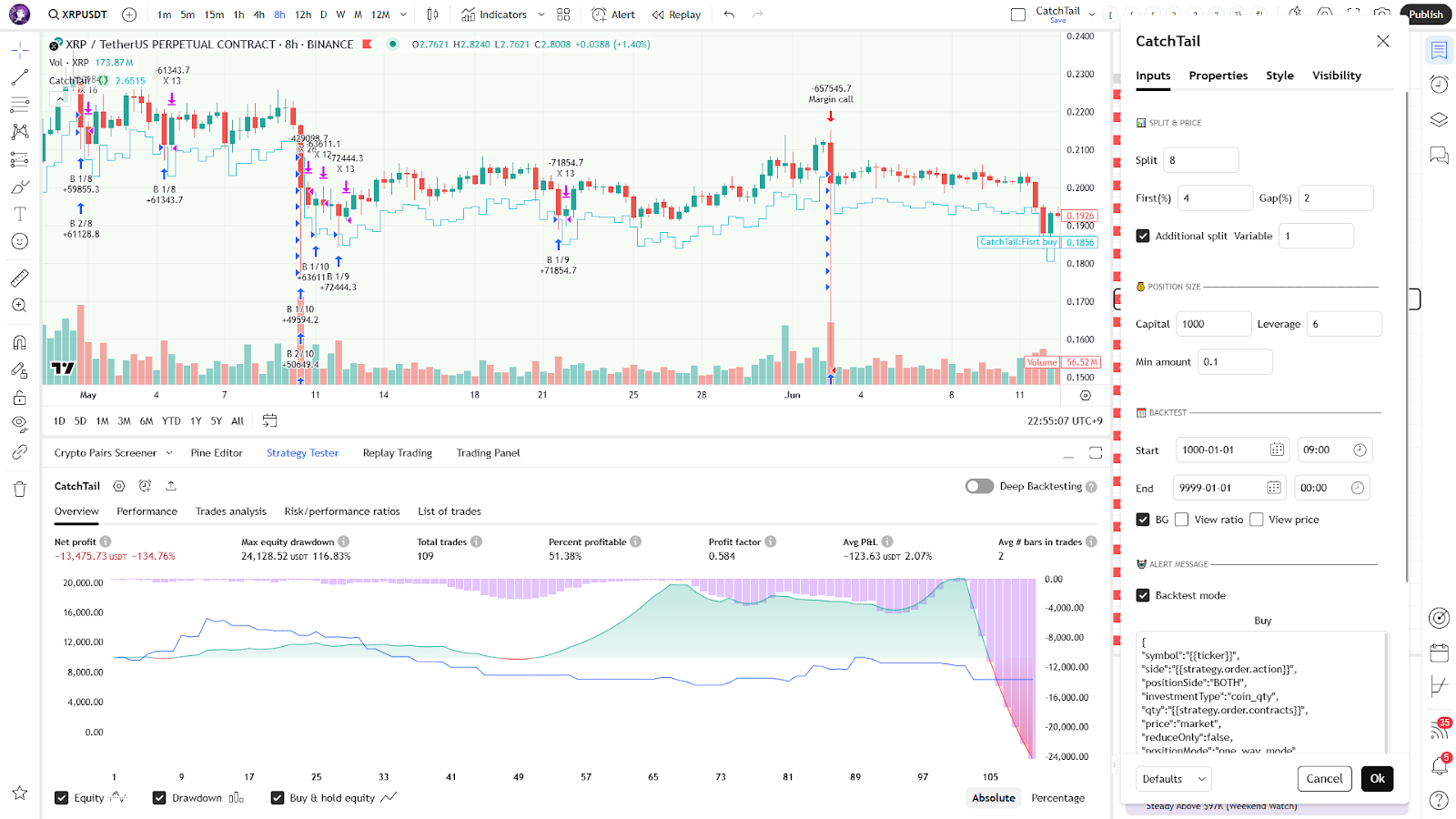
③ Split 8, First 4, Gap 2, Leverage 6
Warning : Excessive leverage can lead to a complete loss of capital. You can check margin calls on the chart.
In real trading scenarios, margin levels may vary depending on leverage, so set your MDD with ample room.
3. Creating Binance Signal Trading
Once you’ve found your desired strategy inputs, use Binance’s signal trading feature to start actual trading.
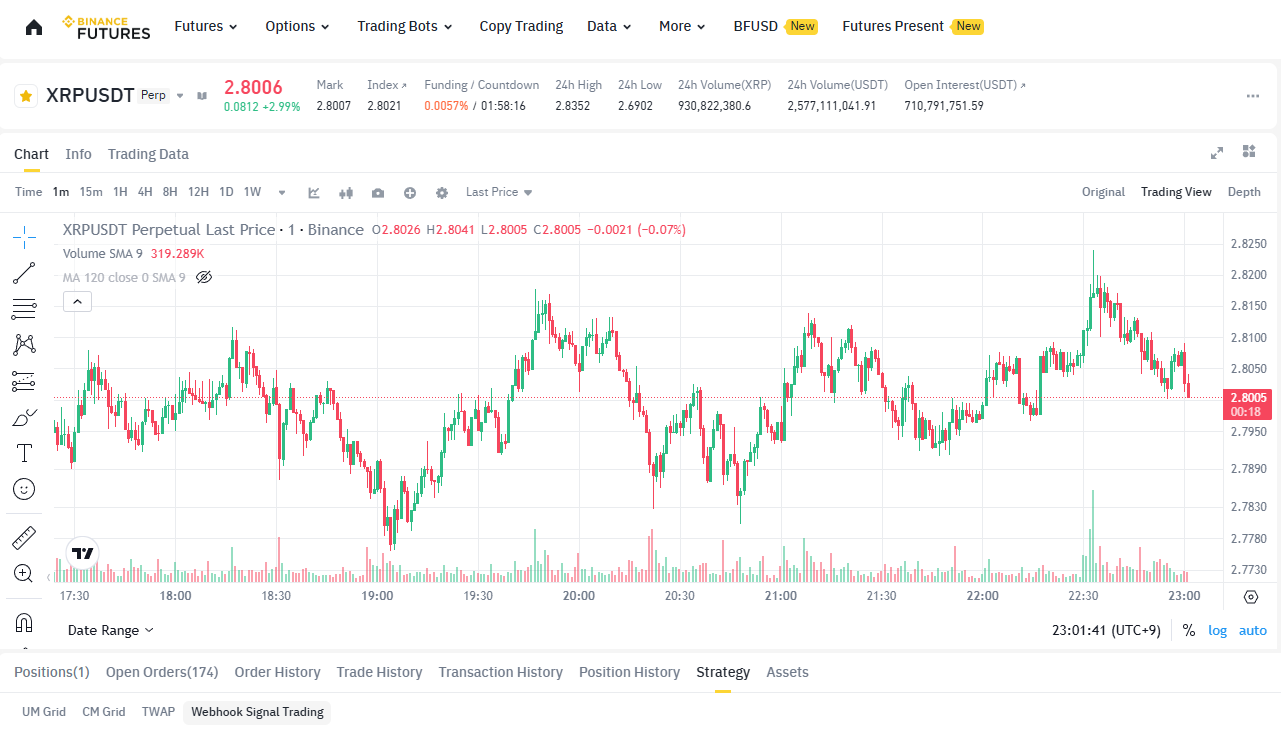
Select Strategy > Webhook Signal Trading at the bottom of the chart.
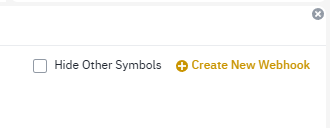
Click Create New Webhook at the far right.

Read the precautions and click Confirm and Proceed.
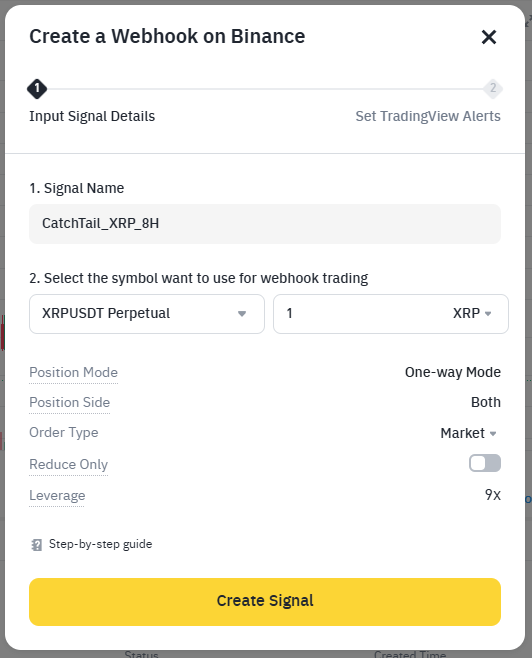
Enter a Signal Name. It is helpful to include the asset, time frame, or input values for easier identification.
Choose the actual asset to trade and enter the quantity, with the default being 1.
The strategy has been tested only in One-way Mode and Market. It cannot be guaranteed to work in other modes, but you can test it yourself. There is no need to modify Reduce Only and Leverage, as they can be adjusted later.
Click Create Signal.
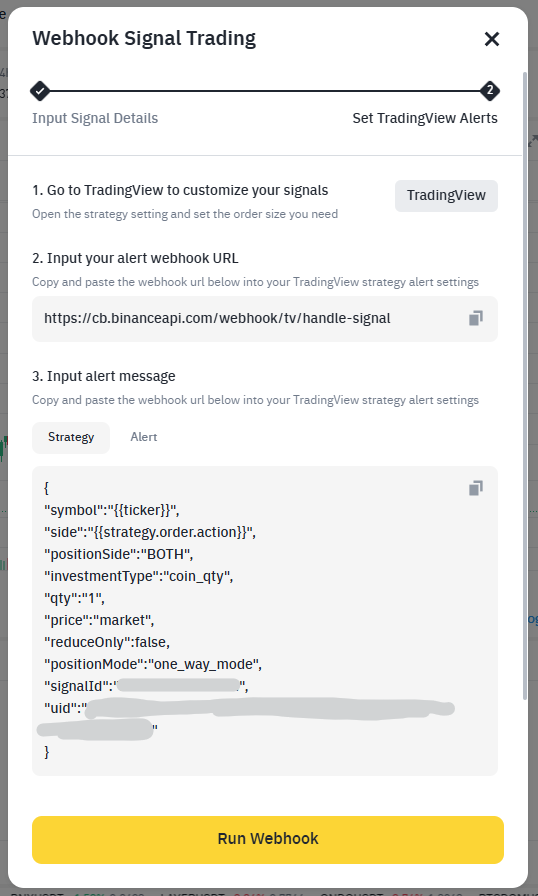
Copy the Webhook URL and Strategy message provided.
The signalId and uid in the Strategy message are unique to you, so do not expose them to others.
Click Run Webhook.
Even if this window closes, you can still view the Webhook URL and Strategy message.
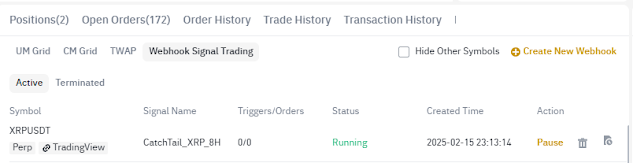
You can check the Webhook Signal Trading you just created.
Click Pause under Action to temporarily stop it.
Even if the webhook signal is delivered, no trade will occur.
Click the Trash icon to delete it, and click the document icon on the right to view the details.
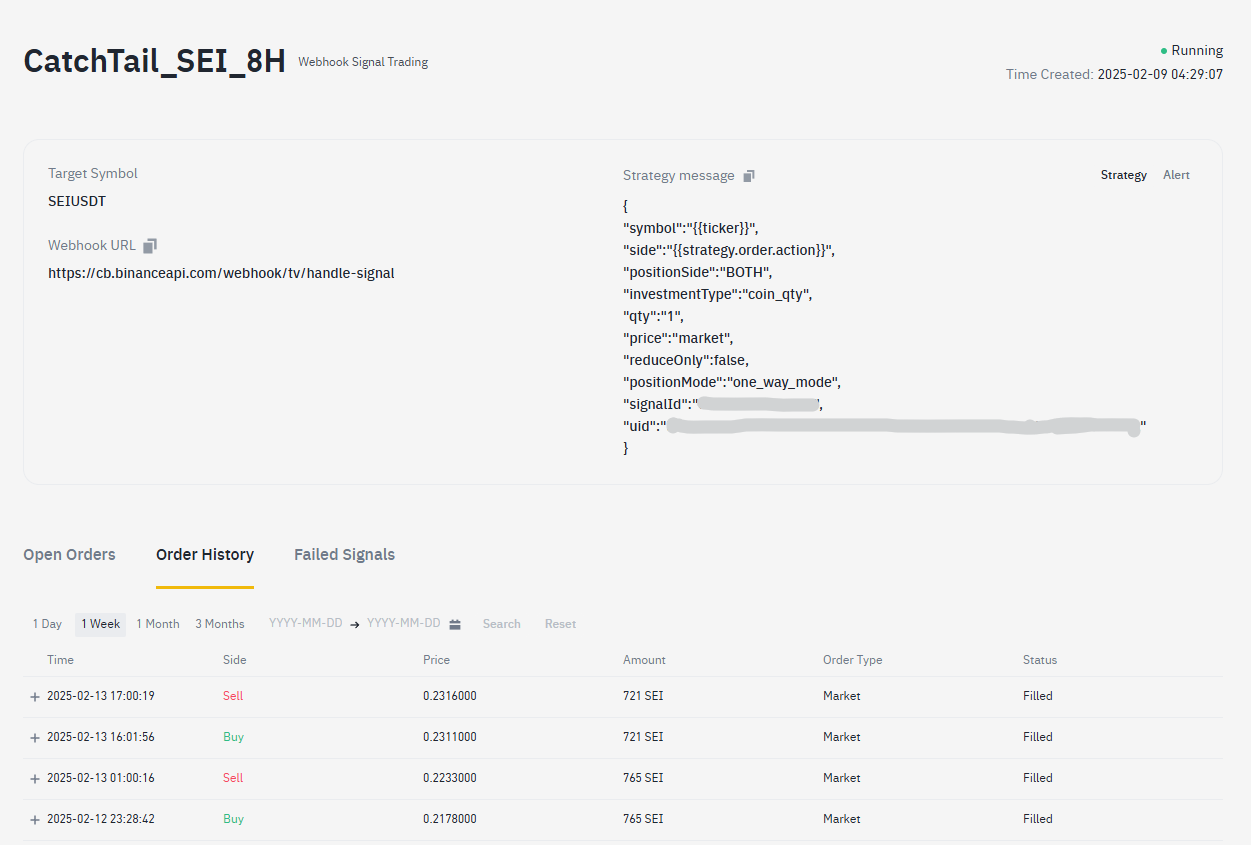
This shows the details of the signal trading currently being tested for SEI.
You can view current orders, past orders, and failed orders here.
You can also check the Webhook URL and Strategy message in this section.
4. Setting Up Webhooks for Live Automated Trading
We’re almost there.
If you’ve made it this far, it means you’ve already conducted extensive backtesting on CatchTail. If not, I recommend doing more research on backtesting.
By now, you should have decided on the input values for live trading.
These input values can be changed at any time, so keep refining them through continuous backtesting.
Some input values for backtesting differ from those used in live automated trading.
TradingView does not have access to your exchange balance.
Since it doesn’t know how much you will allocate for trading, you must manually enter that information.
Up until now, backtests have assumed that the total balance was continuously reinvested with compound interest.
To trade using webhooks in real conditions, you need to decide how much of your assets you will allocate to this strategy and input that value accordingly.
Although this process is somewhat inconvenient, I believe it is a reasonable approach that I have found.
1) Setting the Capital

① Capital
Let’s assume you have 5,000 USDT in your account. Now, suppose you want to allocate only 1,000 USDT to this strategy. Additionally, to pursue slightly higher returns, you decide to use 2x leverage. As a result, you will effectively be using 2,000 USDT for this strategy. In this case, you should enter 1,000 in the Capital field.
Make sure to input a value that is smaller than your total exchange balance. Then, disable Backtest Mode. At this point, the backtest results will change. The profit rate will likely decrease because, unlike backtesting—where all funds are continuously reinvested with compound interest—live trading will use only the amount specified in Capital, following a simple interest model.
Now, let’s assume that after one or several trades, you earn a profit of 10 USDT. If you wish to continue with simple interest, you don’t need to make any changes. However, if you want to reinvest profits using compound interest, you must manually update the Capital to 1,010. Conversely, if you lose 10 USDT, you can set Capital to 990.
This is a manual process because TradingView does not track your actual earnings.
Ultimately, you can choose to reinvest the entire 10 USDT or only 5 USDT—it’s entirely up to you. If you anticipate a significant market downturn, you may decide to reduce your Capital or Leverage, or even temporarily pause signal trading altogether.
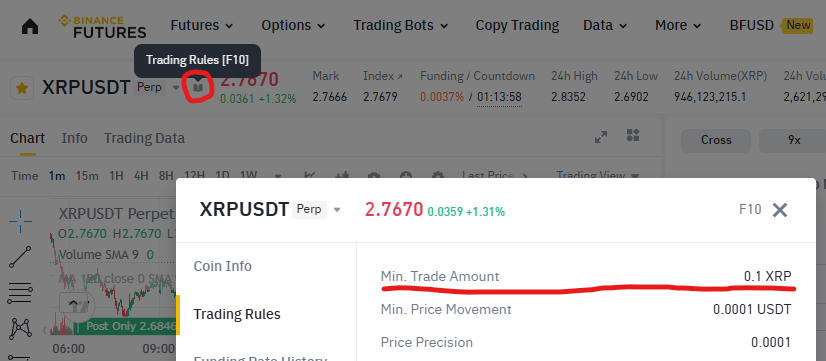
② Min amount
You can check the Min amount by clicking the book icon next to the asset name. Enter this value.
The minimum amount differs for each coin. For example, SOL is 1, and BTC is 0.001.
2) Webhook message
Write the message that will be sent to Binance.
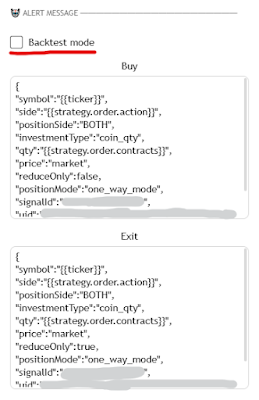
As mentioned earlier, you need to disable Backtest mode.
The Buy message is the one you copied earlier.
The Exit message differs from the Buy message in one aspect: you need to set reduceOnly to true.
Be careful when writing the messages, as they are case-sensitive.
3) Creating Alerts
To create a webhook-based alert, you need at least the Essential level on TradingView.
Additionally, the number of webhooks you can create is limited based on your subscription level.
Optimize the number of webhooks and assets to trade according to your subscription.
Go to the Alerts section on TradingView and click the + button to create a new alert.
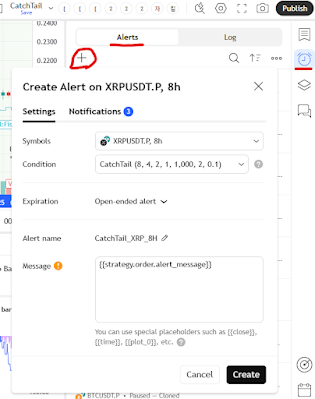
① Settings
Symbols : Select the asset to trade.
Condition : Choose the CatchTail strategy.
Expiration : If you are not on a premium level, the alert will last for a maximum of 2 months, after which you will need to create a new alert (you can extend the period during this time).
Alert name : it is recommended to name the alert based on the coin and time frame.
Message : Simply write {{strategy.order.alert_message}}
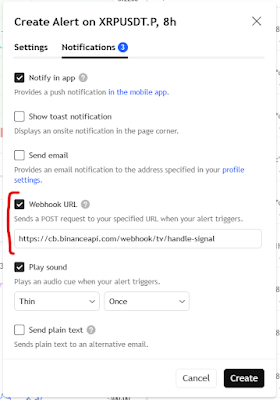
② Notifications
Webhook URL : Check this box and paste the URL you copied from Binance here.
Click Create.
This completes the setup for Binance Signal Trading.
There will be no immediate changes.
Be patient and wait for the trade signals to appear.
If the signals are not showing up, try reviewing past charts to check how many days it has been since a signal last appeared. If it’s still too slow, you can spend time performing backtests on hundreds of coins on Binance.
5. Conclusion
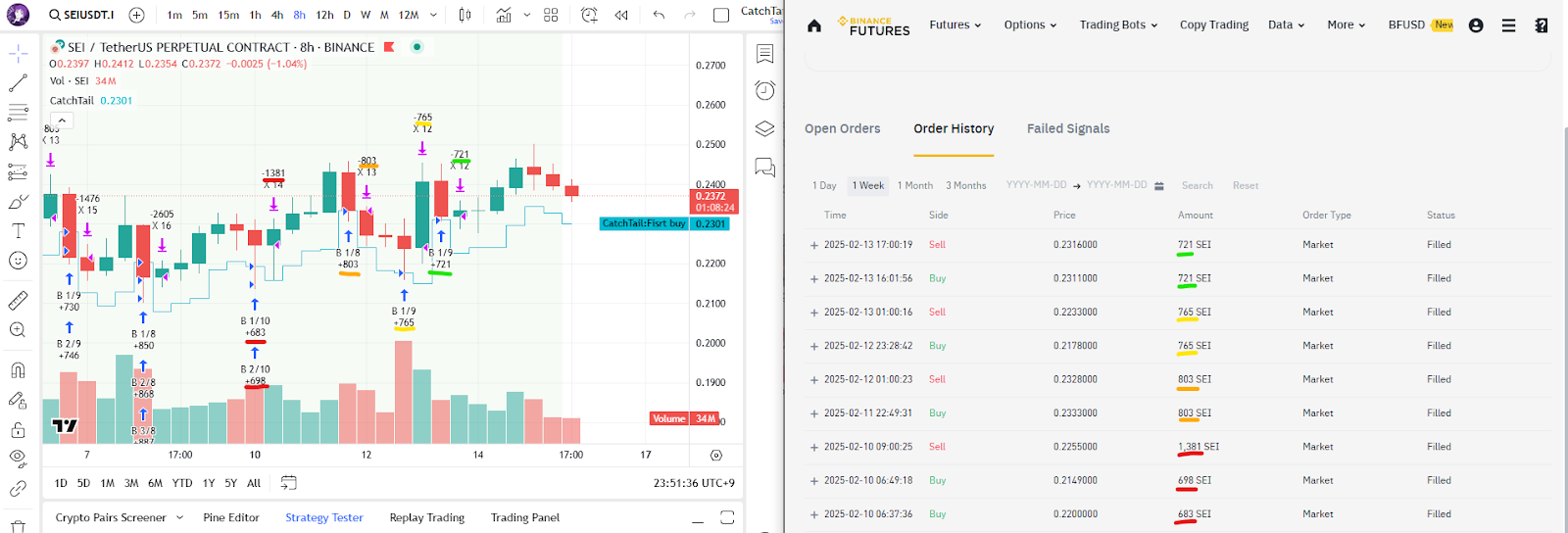
Take a look at the results of my 4-day trading with SEI.
If you’ve set everything up correctly, the quantity on TradingView and the actual quantity traded on Binance should match.
Of course, there may be cases where trades are not executed due to server errors or delays.
If you need to manually close a position, go ahead and do so.
Since this method involves market trading, slippage will occur frequently.
Compare the backtest prices with the actual executed prices.
If necessary, you can test by realistically increasing the slippage in the backtest.
This strategy was developed in May 2021, and as long as excessive leverage is not used, it can generate consistent profits.
This could be proof that the crypto market is that simple.
6. Strategy price (USDT, USDC)
| Duration | Regular Price | Discounted Price | Discount Rate |
|---|---|---|---|
| 1 Month | $99 | $99 | 0% |
| 3 Months | $297 | $269 | -9.4% (≒ 9 days free) |
| 6 Months | $594 | $499 | -16.0% (≒ 1 month free) |
| 12 Months | $1,188 | $899 | -24.3% (≒ 3 months free) |
I will offer a 7-day free trial so you can test it before making a payment.
The free trial is limited to 20 users.
If you request a refund during the trial, it will be prorated, and no discount benefits will be applied.
Using this strategy may result in asset losses.
Losses incurred from using this strategy will not be compensated.
Please check the Plan

 CHULTOO